Monday, August 19, 2013

Foursquare iPhone App: Easy way to crash the app using “Open in Safari” from in-app facebook and twitter screens


Date: 08/20/2013

Foursquare iPhone App: Version 6.2.4

Description:

Yet another bug that no regular person would hit.

When you search for people’s profiles inside of the iPhone app, you’re given the ability to open up their linked facebook and twitter accounts.

If you time it right, you can drag the “Open in Safari” option onto the incorrect screen.

If you select this “Open in Safari” option on the wrong screen, the iPhone app will crash.

This is exactly like the last bug I just wrote.  This is easier to show than to describe, so please take a look at the attached screenshots.

Steps to reproduce:

1.     While signed into an account, launch the Foursquare iPhone app (version 6.2.4)
2.     Select the left hand slider – then select “Find Friends”
3.     Select “Search by Name”
4.     Enter in a search term (for example: “test”)
5.     Select a profile with linked facebook and/or twitter account (example: “Syracuse University”)
6.     Select the Facebook or Twitter options
7.     Coordinate pressing the arrows in the upper right hand corner and the bottom left hand corner simultaneously
8.     You’ll be taken to the previous profile screen with an “Open in Safari” option at the bottom of the screen – select it

Result: On the in-app facebook and twitter screens, the user is able to select two options and drag the “Open in Safari” screen onto the previous screen, doing so crashes the iPhone app

Expected:  App shouldn’t crash if “Open in Safari” is dragged to a previous screen

Select a foursquare page or profile that has linked facebook or twitter accounts.

On a profile or page that has linked facebook or twitter accounts, select the option to visit them...

Select the "Facebook" option...

Select the arrows in opposite corners of the screen - doesn't matter when you do it, you can wait till the facebook connect page loads, or you can do it fast, as seen above...

The "Open in Safari" option is on the incorrect screen, selecting either "Cancel" or "Open in Safari" will crash the iPhone app...


Foursquare iPhone App: Toggling the “Share this Tip” and the back arrow will crash the app


Date: 08/20/2013

Foursquare iPhone App: Version 6.2.4

Description:

There is a very easy to reproduce crash that is active with the current version (6.2.4) of the foursquare iPhone app.

I got the app to crash several times yesterday, and always uploaded the crash dump.

If you’re wondering where the crash dumps came from, here’s an explanation of what I did.

It is much, much easier to show than to describe, so please just take a look at the screenshots below.

The average user isn’t likely do the steps mentioned in the bug, but it’s fun to write down how to activate the crash.

The crash happens of individual tip detail pages.  If there’s a tip, along with a “Share this Tip” button, you can easily activate this crash.

It takes a little two-finger dexterity, but you can coordinate pressing the “Share this Tip” and the back button (in the upper left) at the same time.  If this is done correctly, you will be able to drag a “Share this tip” slider onto the previous “People Talk About…” screen.  Doing anything to this slider will cause the app to crash.

Not exactly something the average person does, but it is interesting nonetheless.

Steps to reproduce the crash:

1.     Launch the iPhone while logged into your account
2.     Select any place that has tips
3.     From a place detail page that has tips, select “People Talk About…”
4.     Select any individual tip
5.     Coordinate pressing the “Share this Tip” and the back button (in upper left hand corner of the screen) simultaneously
6.     If done correctly, the “Share this tip” UI will be overlaid on the previous “People Talk About…” screen – at this point the app will crash

Result:  There is an easy to reproduce crash on the tip page of places – there’s an option to “Share this Tip” and to use a back arrow to return to a previous screen – toggling these two buttons will eventually result in a crash

Expected:  App shouldn’t crash from toggling “Share this Tip” and the back button 

Select any tip under the "People Talk About..." section.

Select any individual tip...

Toggle the "Share this Tip" and the back arrow options at the same time...

This slider will be overlaid on the wrong screen.  If you select any option...

You'll crash, and then see this when you relaunch the app.

Sunday, August 18, 2013

Finish iPhone App: Easy to get keyboard on the "Due Time" screen


Date: 08/18/2013

Finish iPhone app: Version 2

Description:

There’s a very minor bug I discovered with the Finish iPhone app.  This bug is much easier to show than to describe, so you can just skip down to the attached screenshots if you like.

I downloaded the Finish app some months ago, and I really like it.  You should download it if you have a chance.

Here’s the bug (and as I said it is incredibly minor):

On the “Task Settings” screen there are options called “Tap to Add Some Notes (Optional)” and “What Time?(Optional)” – both of these options activate sliders.

If you press both of these options at the same time, the user will see the keyboard overlaid on top of the “Due Time” screen.

Steps to reproduce:

1.     Launch the Finish iPhone app
2.     Create a task
3.     Go to the “Task Settings” screen for your created task
4.     Press and then release “Tap to Add Some Notes” and “What Time?” at the same moment

Result:  Pressing and releasing the “Tap to Add Some Notes” and the “What Time?” options on the “Task Settings” screen results in the keyboard being overlaid on top of the “Due Time” sliders

Expected:  Pressing and releasing “Tap to Add Some Notes” and the “What Time?” options at the same time shouldn’t result in the keyboard being overlaid on top of the “Due Time” screen


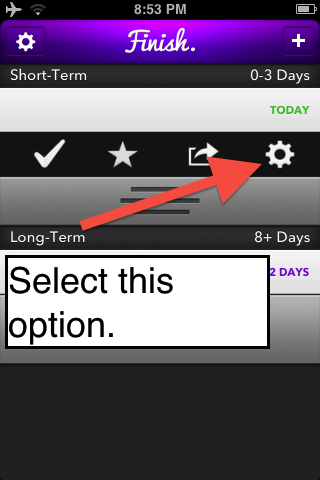
Press and release the two circled options at the same time....


Friday, August 9, 2013

MixBit iPhone App Twitter Sharing: I don’t see default text or a hashtag when I try to send out a tweet from a featured video

Date: 08/09/2013
MixBit iPhone App: Version 1.0.3

I downloaded the MixBit iPhone App and have been playing around in the user interface.  It's a nice app, and I recommend trying it out if you have an iPhone.

What’s with Twitter sharing?  I’m able to generate what looks to be a blank tweet when I try to tweet out from a featured video from within the iOS app. 

If I actually do share the tweet, a link is sent out.

Here’s what I did on the MixBit iPhone app.  I created a fake account to check out the app.  I did NOT open up any email on my iPhone 3GS to create a formal, activated account.  I went to a featured video, selected the tweet option, and was presented with a completely blank twitter option.

This is much easier to show than to describe, so please see the attached screenshots below.


Steps:

1.     Download and launch the MixBit iPhone App
2.     Select the “M” and select “Account”
3.     Select “Register” and enter in a fake email address
4.     Go to any featured video
5.     Select the tweet option for any video
6.     Notice that the generate tweet doesn’t have any default #MixBit hastag
7.     Notice that the you don’t even see a url!

Result:  Selecting the tweet option for any featured video from inside of the MixBit iPhone app is an odd experience – I’m not seeing any default message or even a url


Expected:  I expect to see a url in all tweets that I send out – generally expect a default hashtag


Download the MixBit iPhone App...

Register an account using a bogus email address...

You'll receive a confirmation message.  Don't do anything except for heading to the featured videos...

From any featured video, send out a tweet...

A url never appears.  There's no default message, or a hashtag.  Send out the tweet...